---
title: How to Configure Okta SSO Using SAML 2.0 for VIP Software
description: This article provides a step-by-step guide for integrating Okta with VIP Software’s SSO system using SAML 2.0. Follow these instructions to enable seamless authentication for your users.
---
[Skip to content](https://knowledge.vipsoftware.com/how-to-configure-okta-sso-using-saml-2.0-for-vip-software#main-content)
[More support](https://knowledge.vipsoftware.com/kb-tickets/new?hsLang=en)
%20-%20June%2019%2c%202026%20at%2011.43.46-8-Artboard%208%20(1).png?width=500&height=500&name=rate%20iq%20(1)%20-%20June%2019%2c%202026%20at%2011.43.46-8-Artboard%208%20(1).png)
- [Knowledge Base](https://knowledge.vipsoftware.com/)
- [Support](https://knowledge.vipsoftware.com/tickets)
Open main navigation
Close main navigation
- [Knowledge Base](https://knowledge.vipsoftware.com/)
- [Support](https://knowledge.vipsoftware.com/tickets)
- [More support](https://knowledge.vipsoftware.com/kb-tickets/new)
How can we help you?
- There are no suggestions because the search field is empty.
1. [Help Center](https://knowledge.vipsoftware.com/?hsLang=en)
2. [Integrations](https://knowledge.vipsoftware.com/integrations?hsLang=en)
# How to Configure Okta SSO Using SAML 2.0 for VIP Software
This article provides a step-by-step guide for integrating Okta with VIP Software’s SSO system using SAML 2.0. Follow these instructions to enable seamless authentication for your users.
---
### **Prerequisites**
Before starting, ensure you have:
- Administrative access to your Okta tenant
- A VIP Software account with SSO enabled
- Basic understanding of SAML 2.0 authentication flow
---
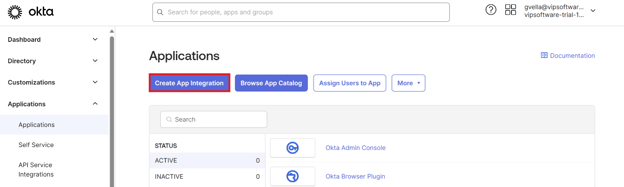
### **Step 1: Access Okta Applications Dashboard**
1. Log into your Okta Admin Console.
2. Navigate to **Applications**.
3. Click **Create App Integration**.
---
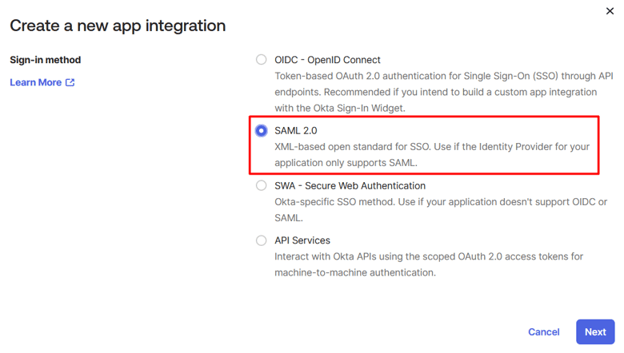
### **Step 2: Choose Integration Method**
1. Select **SAML 2.0** as the sign-in method.
2. Click **Next**.
---
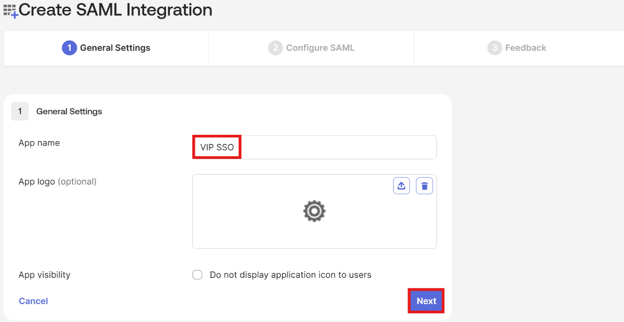
### **Step 3: Configure General Settings**
1. Enter **VIP SSO** as the application name.
2. Optionally upload a logo.
3. Configure visibility settings.
4. Click **Next**.
---
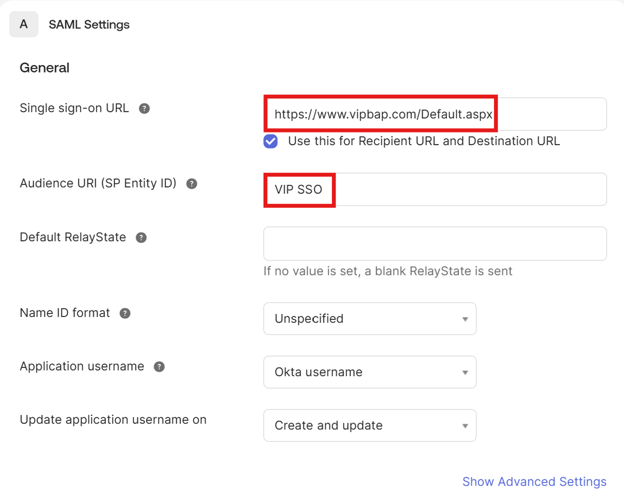
### **Step 4: Configure SAML Settings**
Fill in the following fields:
- **Single Sign-On URL**
- Staging:
- `https://www.stagingnew.vipbap.com/Default.aspx`
- `https://www.staging.vipinvision.com/Default.aspx`
- Production:
- `https://www.vipbap.com/Default.aspx`
- `https://www.vipinvision.com/Default.aspx`
- **Audience URI (SP Entity ID)**: `VIP SSO`
---
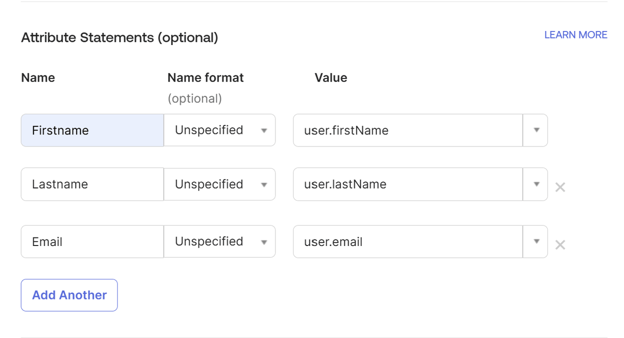
### **Step 5: Configure Attribute Statements**
Add the following attributes:
| Name | Value |
| --- | --- |
| Firstname | `user.firstName` |
| Lastname | `user.lastName` |
| Email | `user.email` |
Click **Next**, then **Finish**.
---
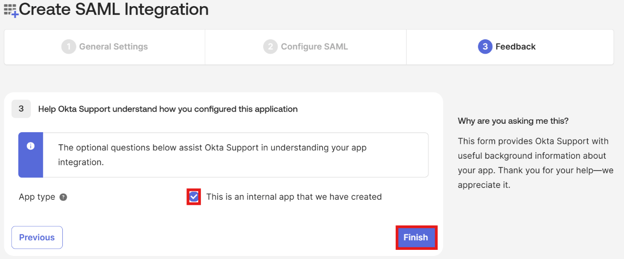
### **Step 6: Finalize Application Setup**
1. Check **This is an internal app that we have created**.
2. Click **Finish**.
---
### **Step 7: Gather Required Values for VIP Integration**
Navigate to your newly created application and collect the following:
- **Audience Restriction**
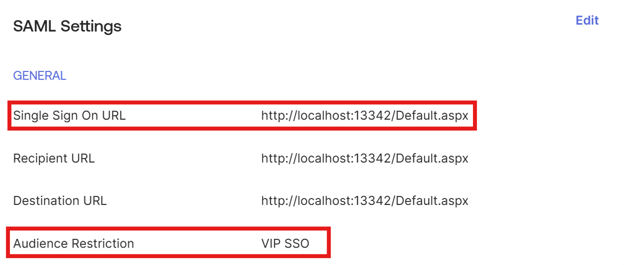
- **SSO URL**
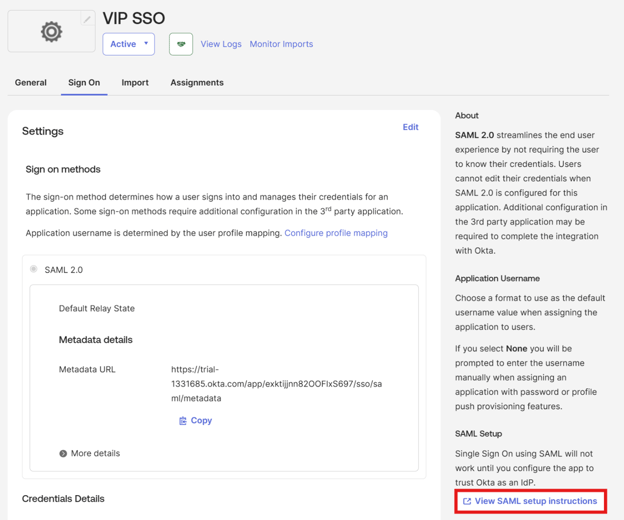
- **IDP SSO URL**
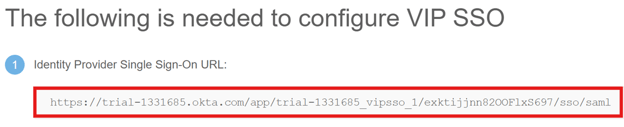
- **IDP Issuer**

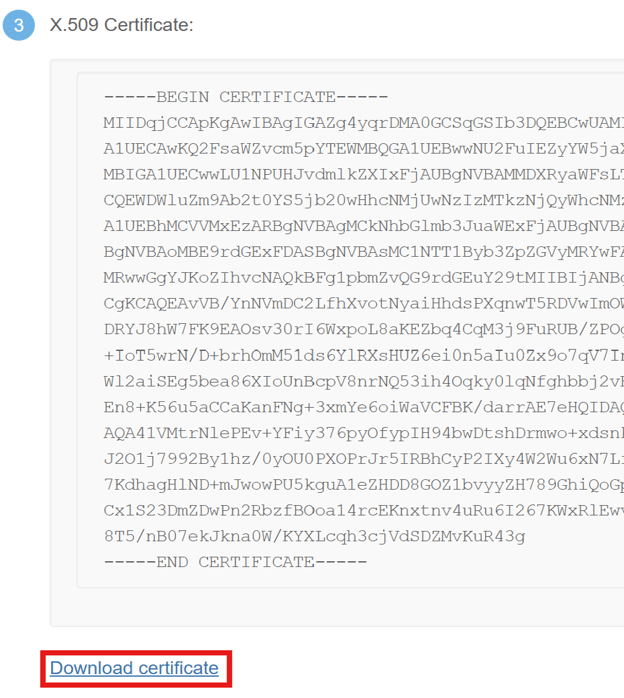
- **Signing Certificate**
---
### **Step 8: Create and Assign Users**
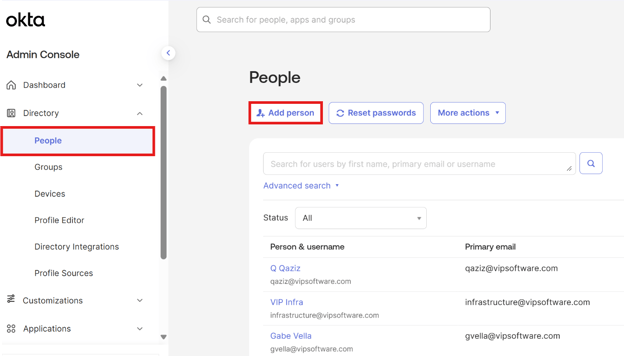
1. Go to **Directory** \> **People**.
2. Click **Add Person**.
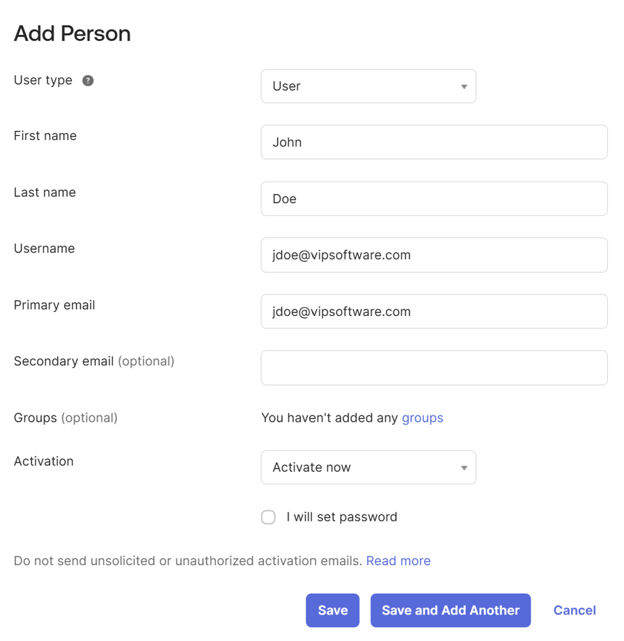
1. Fill out the user details and activate the account.
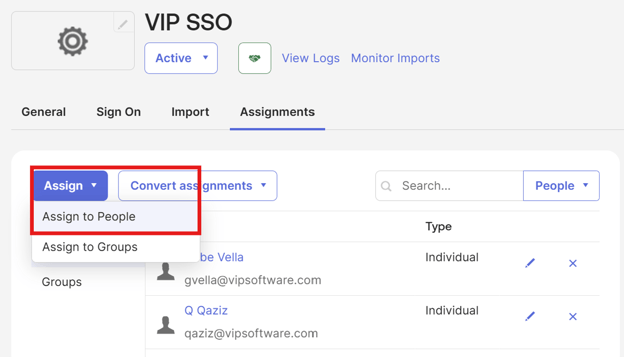
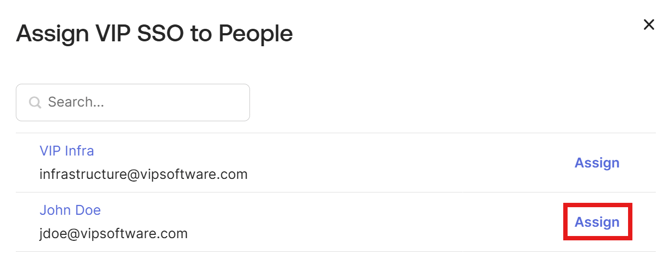
1. Assign users to the VIP SSO application:
- Go to the **Assignments** tab.
- Click **Assign** \> **Assign to People**.
### **Step 9: Validate the Integration**
Ensure the following:
- Application status is **Active**
- Users are assigned correctly
- SAML certificate is installed
- All endpoints are configured
### **Step 10: Test the Integration**
1. Access the VIP application.
2. Initiate the SSO login.
3. Authenticate via Okta.
4. Confirm successful login and redirection.
### **Best Practices**
- Use HTTPS for all SAML communications.
- Rotate certificates regularly.
- Implement session timeouts and error handling.
- Monitor authentication logs.
- Keep documentation updated.
- [Support FAQ](https://knowledge.vipsoftware.com/support-faq?hsLang=en)
- [General Application Information](https://knowledge.vipsoftware.com/general-application-information?hsLang=en)
- [BAP](https://knowledge.vipsoftware.com/bap?hsLang=en)
- [Invision](https://knowledge.vipsoftware.com/invision?hsLang=en)
- [Integrations](https://knowledge.vipsoftware.com/integrations?hsLang=en)
- [Knowledge Base](https://knowledge.vipsoftware.com/)
- [Support](https://knowledge.vipsoftware.com/tickets)
[%20-%20June%2019%2c%202026%20at%2011.43.46-8-Artboard%208%20(1).png?width=500&height=500&name=rate%20iq%20(1)%20-%20June%2019%2c%202026%20at%2011.43.46-8-Artboard%208%20(1).png)](http://vipsoftware.com)
[mailto:email@email.com](mailto:email@email.com)
Copyright © 2026, vipsoftware.com